Quick answer
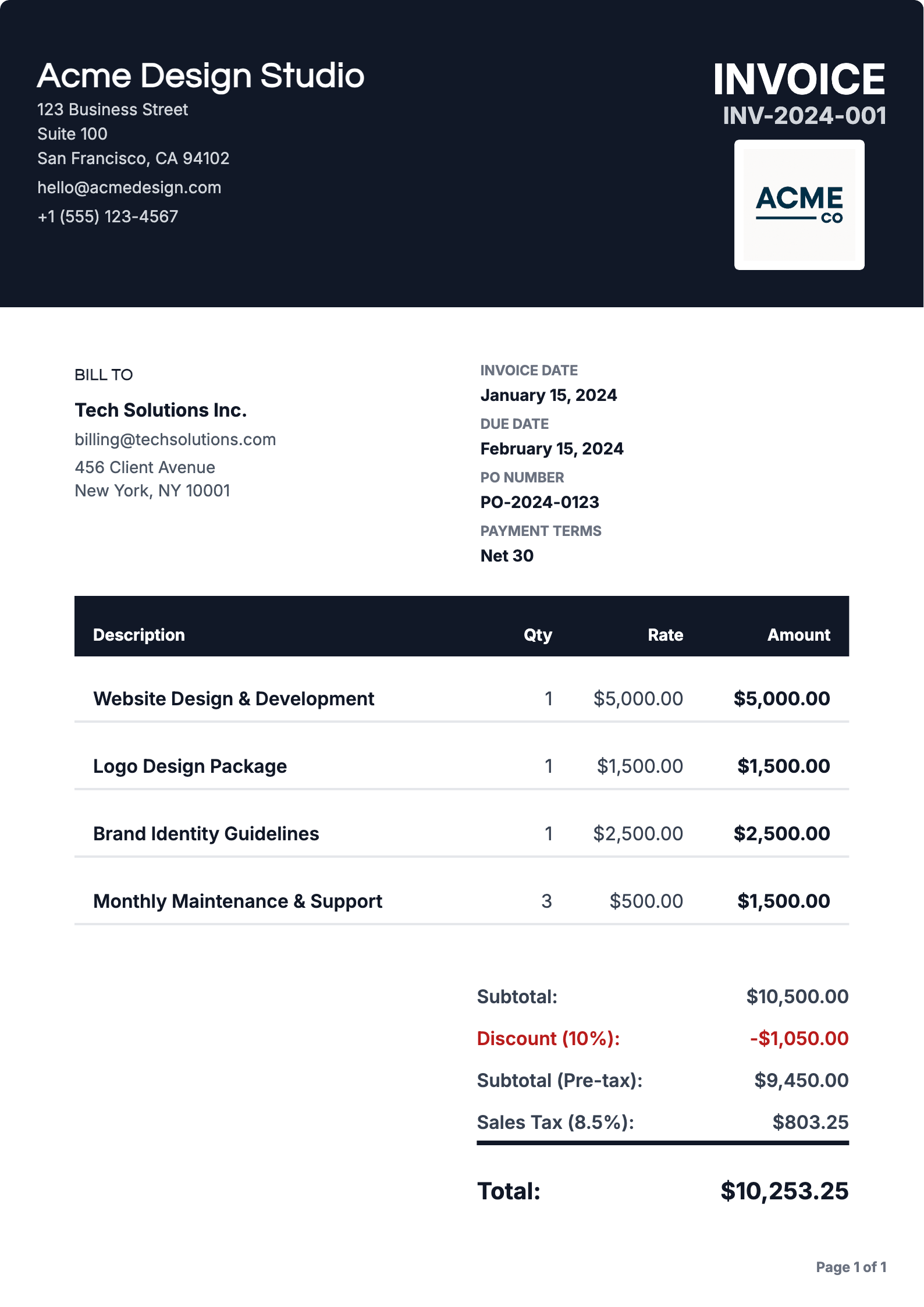
To print a professional invoice at home, export it as a PDF first, use a template designed for A4 or Letter paper with adequate margins, print at 100 percent scale on quality white paper, and check that the total and due date are clearly legible.
Why Print Your Invoices?
While digital invoices are convenient, there are many situations where you need a physical printed copy:
- Physical Records: Some businesses require paper copies for filing and record-keeping
- Client Preferences: Some clients prefer receiving physical invoices in the mail
- Legal Requirements: Certain industries or jurisdictions require printed documentation
- Backup Copies: Physical copies serve as backup in case of digital storage issues
- Professional Presentation: Hand-delivered printed invoices can make a stronger impression
Step-by-Step: Creating and Printing Your Invoice
Step 01: Create Your Invoice on invoicewebsite.com
Start by creating your invoice using invoicewebsite.com:
- Log in to your account or sign up for free
- Fill in your business information and client details
- Add line items, quantities, and prices
- Review all information to ensure accuracy
- Choose a professional invoice template that suits your brand
Pro Tip
All invoice templates on invoicewebsite.com are designed to be print-ready, so you can choose any template and it will look great when printed.
Step 02: Download Your Invoice as PDF
Once your invoice is complete, download it as a PDF:
- Click the Download PDF button on your invoice page
- The PDF will be generated instantly with all your invoice details
- The PDF is formatted for standard letter-size paper (8.5" x 11")
- All formatting, logos, and styling are preserved in the PDF
The PDF generated by invoicewebsite.com is optimized for printing. It uses standard margins, clear fonts, and professional formatting that will look perfect when printed on any home printer.
Step 03: Open the PDF and Print
Printing your invoice is straightforward:
- Open the downloaded PDF file on your computer
- Use your default PDF viewer (Adobe Reader, Preview on Mac, or your browser's PDF viewer)
- Click "Print" or press Ctrl+P (Windows) or Cmd+P (Mac)
- Select your home printer from the list
- Choose your print settings (see tips below)
- Click "Print" to start printing
Why invoicewebsite.com PDFs Are Perfect for Printing
Print-Ready Format
PDFs are formatted for standard letter-size paper, ready to print immediately
Professional Quality
High-quality formatting ensures your printed invoices look professional
Preserved Formatting
All colors, fonts, logos, and layouts are maintained in the printed version
Home Printer Compatible
Works perfectly with any standard home printer, inkjet or laser
Best Practices for Printing Invoices
Use Quality Paper
For professional-looking printed invoices, use good quality white paper (at least 20 lb. or 75 gsm). While standard copy paper works fine, slightly heavier paper (24 lb. or 90 gsm) gives invoices a more premium feel and better durability.
Check Print Settings
Before printing, verify these settings:
- Paper Size: Ensure it's set to "Letter" (8.5" x 11") or A4, depending on your region
- Orientation: Use "Portrait" orientation for standard invoices
- Margins: Use "Default" or "Normal" margins (the PDF is already optimized)
- Scale: Set to "100%" or "Actual Size" to avoid scaling issues
- Color: Choose "Color" if your invoice has colored elements, or "Black & White" to save ink
Preview Before Printing
Always use the print preview feature before printing. This lets you see exactly how the invoice will look on paper, check margins, and ensure everything fits properly. Most PDF viewers have a preview option in the print dialog.
Free to Start
Print-ready invoices. Every time.
Create professional PDF invoices optimized for any printer, free to start.
Common Printing Issues and Solutions
Invoice is Cut Off or Too Small
Solution: Check your print settings and ensure "Scale" is set to "100%" or "Actual Size". Avoid "Fit to Page" which can shrink the invoice. Also verify that paper size matches the PDF (Letter or A4).
Colors Don't Print Correctly
Solution: Ensure your printer has color ink/toner and that "Color" is selected in print settings. If printing in black and white, the invoice will still be readable, but colored elements will appear in grayscale.
Text is Blurry or Faded
Solution: Check your printer's ink/toner levels and replace if low. Also verify print quality settings are set to "Best" or "High Quality" rather than "Draft" mode. Clean print heads if needed.
Margins Are Too Large or Small
Solution: The PDF from invoicewebsite.com is already optimized with proper margins. Use "Default" or "Normal" margins in your print settings. Avoid custom margin settings that might interfere with the layout.
Tips for Professional Printing Results
Get the Best Print Quality
- Use High-Quality Mode: Select "Best" or "High Quality" in your printer settings for crisp text and clear logos
- Print in Color: Even if your invoice is mostly black and white, printing in color ensures logos and branding elements look professional
- Check Alignment: Make sure paper is properly aligned in the printer tray to avoid crooked printing
- Store PDFs: Keep the original PDF files as backup, you can always reprint if needed
- Batch Printing: If printing multiple invoices, print them one at a time or use a print queue to avoid jams
Advantages of Using invoicewebsite.com for Printable Invoices
Instant PDF Generation
Create and download print-ready PDFs in seconds. No complex software needed.
Works on Any Device
Create invoices on your computer, tablet, or phone, then print from any device.
Professional Templates
Multiple templates designed to look great both on screen and when printed.
Unlimited Reprints
Invoices are saved in your account, download and print them again anytime.
Ready to Print Professional Invoices?
Get Started Today
Printing invoice templates doesn't have to be complicated. With invoicewebsite.com, you can create professional invoices, download them as print-ready PDFs, and print them on any home printer with ease.
The PDFs generated by invoicewebsite.com are specifically optimized for printing, ensuring that your invoices look professional and maintain their formatting when printed on standard home printers.
Ready to start? Sign up for invoicewebsite.com today and discover how easy it is to create, download, and print professional invoice templates.
Frequently Asked Questions
What paper size should I use for invoices?
Use Letter (8.5 by 11 inches) in the United States and Canada, and A4 everywhere else. Most invoice templates are designed to fit either size when printed at 100 percent scale.
Why does my invoice print with cut-off edges?
Printing directly from the browser often applies default headers and scaling. Download the PDF first, open it in a PDF viewer, and print at actual size with no scaling.
Should I print invoices in color?
Color helps if your template uses a logo or brand accents, but a clean black-and-white template is perfectly professional and cheaper for bulk printing.
Do I still need to keep a digital copy?
Yes. Keep the PDF for your records and for tax purposes. Printed copies are for mailing or handing to clients; the digital version is your permanent record.